This guide will walk you through creating an API key within PeopleHR and entering it into the linking flow.
Prerequisites
Ensure you fulfil the following requirements to set up the integration:
You are an Administrator in your company's PeopleHR instance, or someone has shared their access with you.
Instructions
Step 1: Generating Your API key
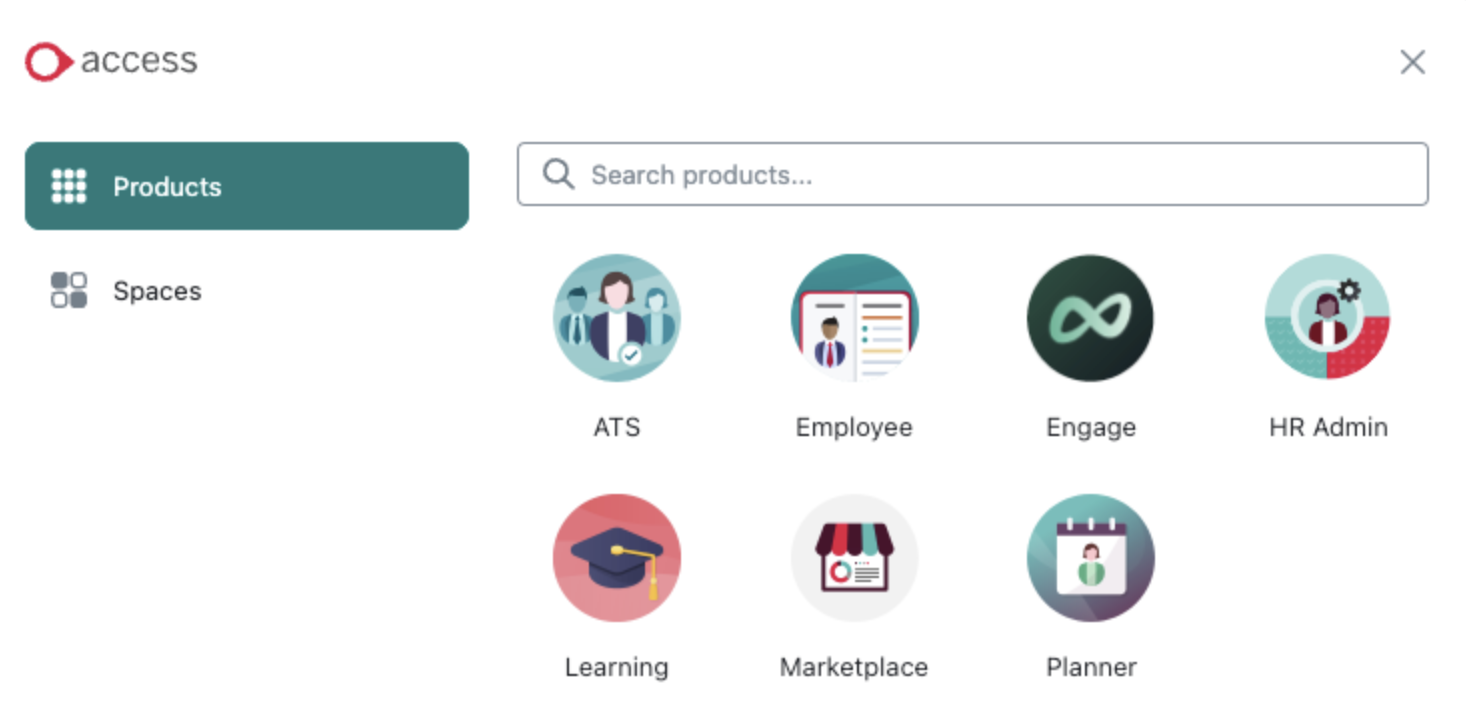
In your PeopleHR account, click Access in the top left hand corner, and select HR Admin.
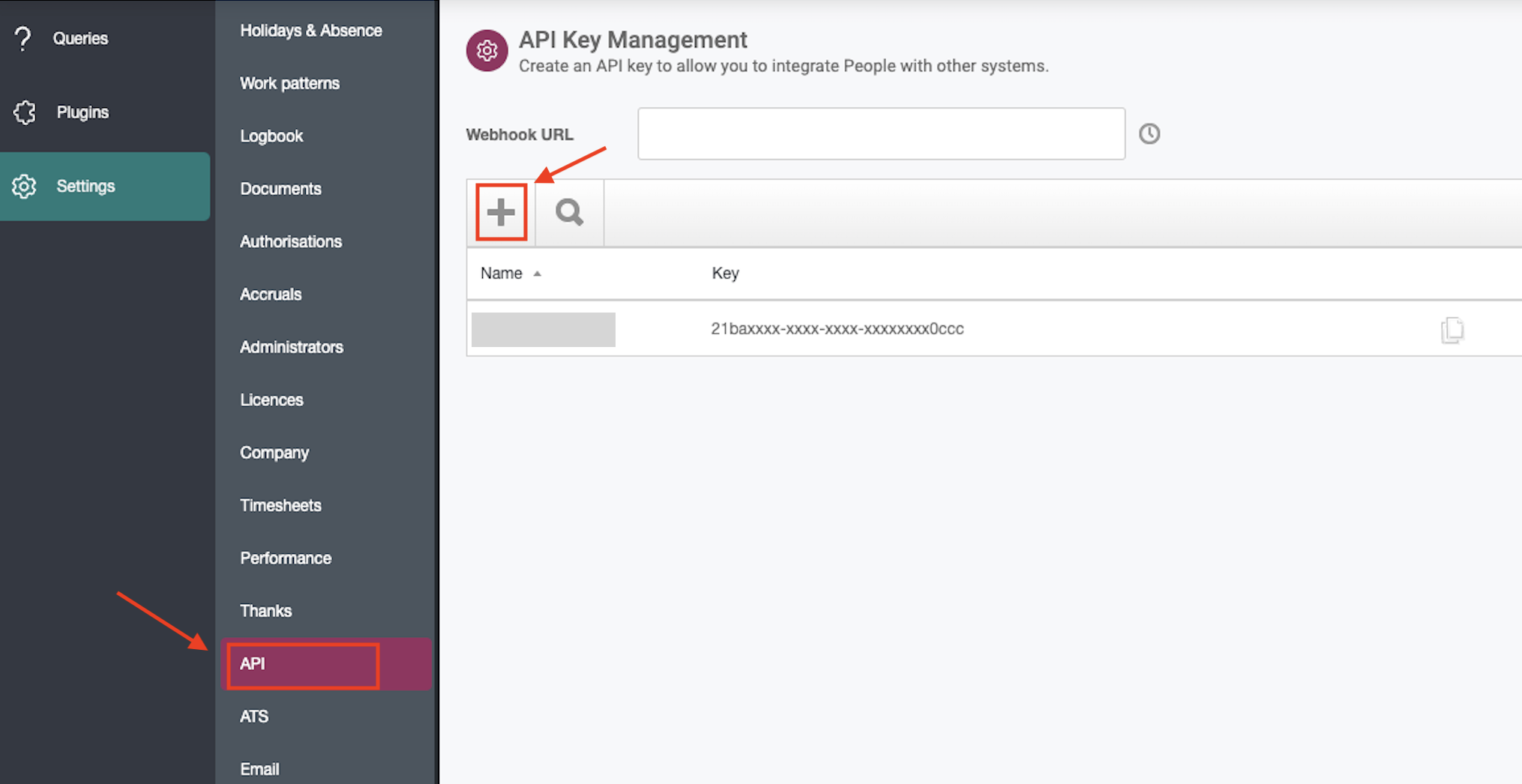
Go to Settings on the left sidebar.
Select API and click the + icon
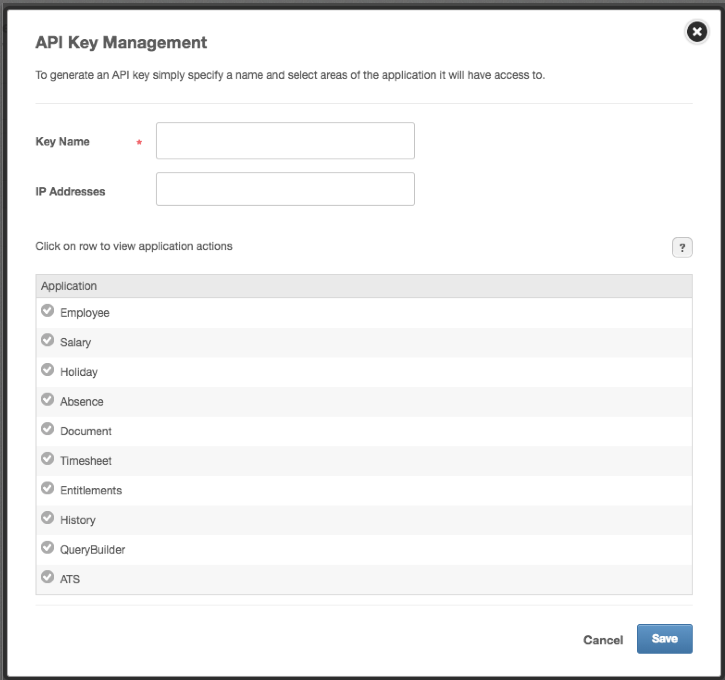
On the API Key Management screen, type in a name for the key.
For the application actions, Select All for Employee, Salary, Absence, and/or Holiday, depending on your use case. Below is an example for Employee:
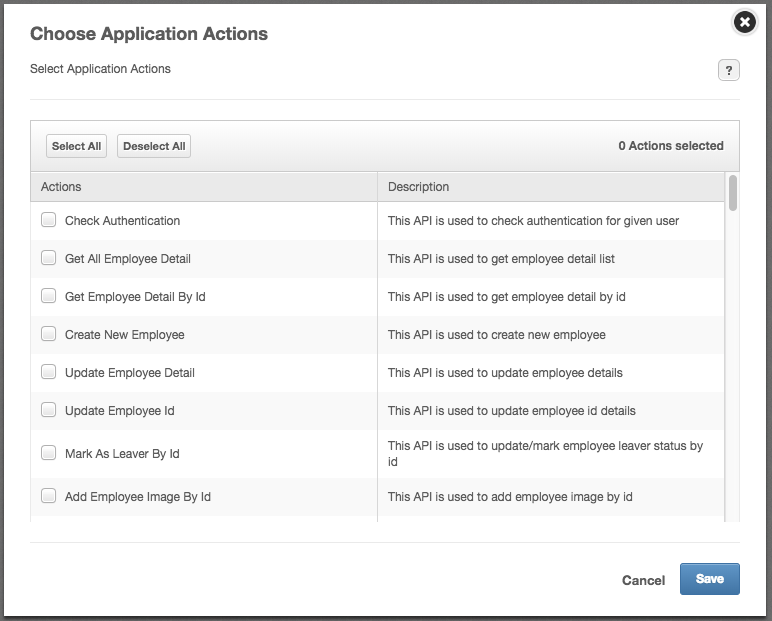
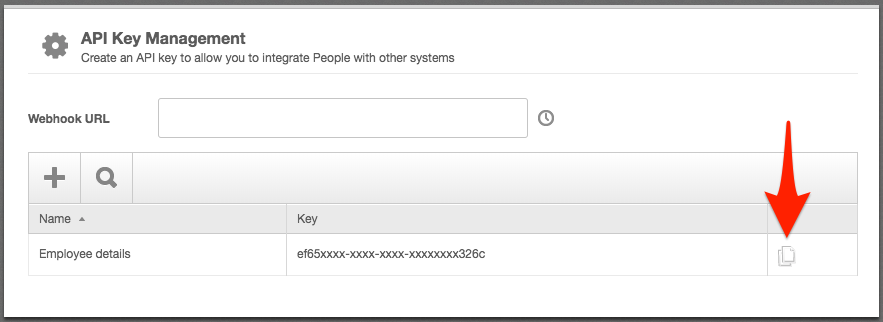
Press Save. Copy and store your Key in a safe place.
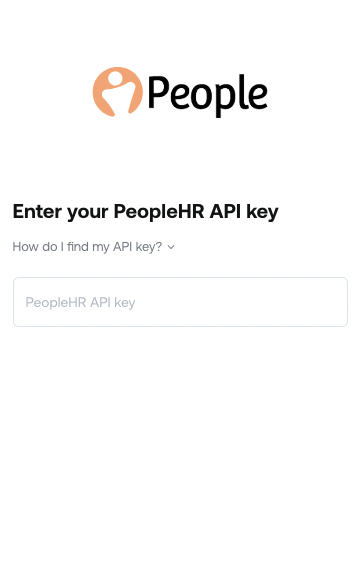
Step 2: Enter your API key in the linking flow
See More
For more information, go to: https://help.peoplehr.com/en/articles/1970068-creating-an-api-key