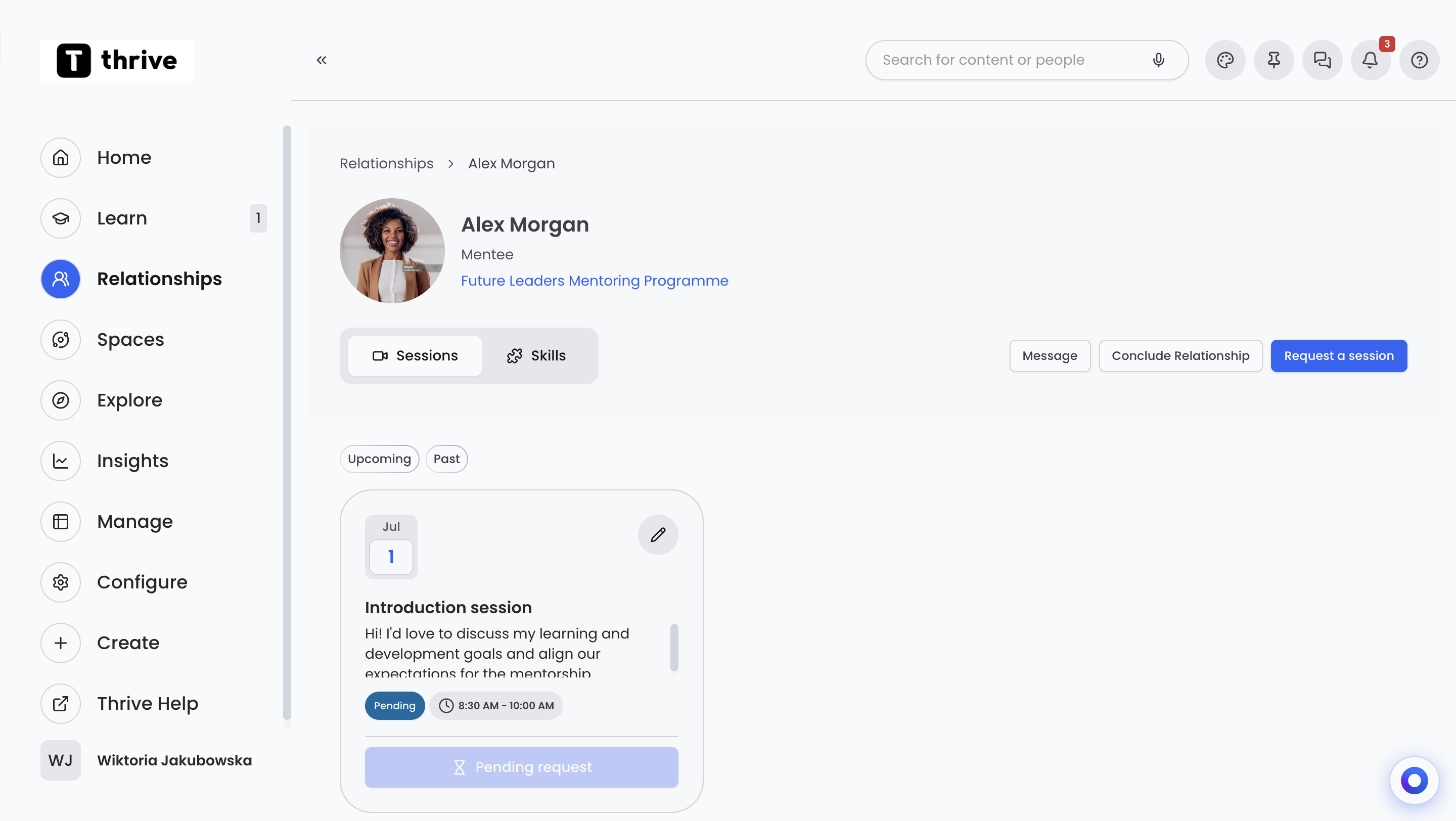
From the Connections screen on the Thrive menu, you can view and manage all your active relationships at a glance. Each card shows your partner's name, role, the skills you matched on, and your upcoming session. Use the filter to switch between Mentors, Mentees, and Concluded.
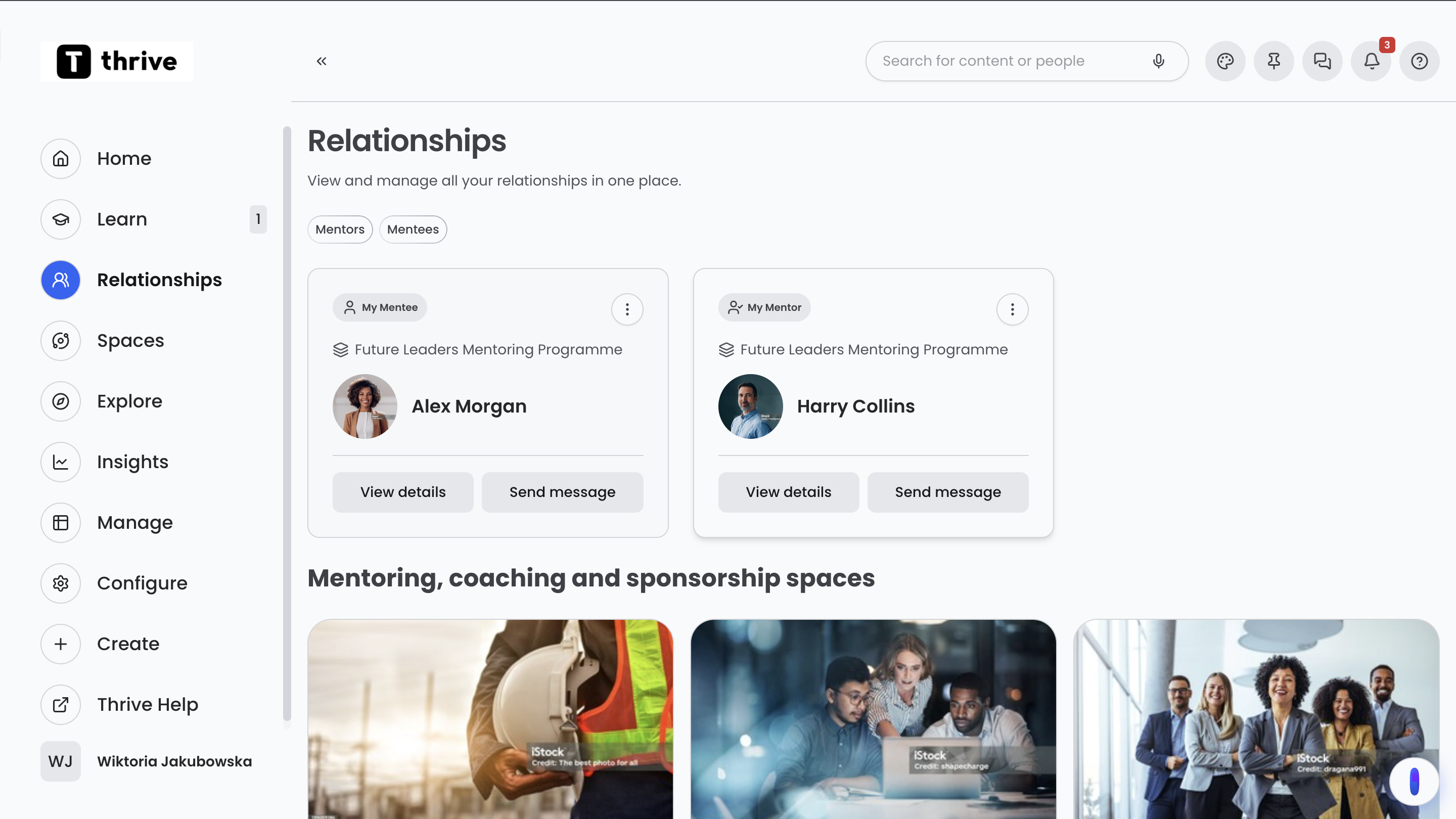
Relationship Details Page
Clicking View details on a connection card opens the details page. Your partner's name and role are shown at the top – click their name to view their full profile.
Sessions tab: view and manage your upcoming and past sessions. For full details, see Sessions.
Skills tab: review your partner's skills to support goal alignment.
Content pack tab: access learning content assigned to the connection.
Message: takes you to Chat where you can contact your partner directly.
Request a session: schedule a new session with your learning partner. For full details, see Sessions.
Conclude Relationship: formally end the engagement when it has run its course.
Note:
Once concluded, the connection moves to the Concluded filter and your session history remains visible. Select Restart Relationship at any time to re-engage.